 ← PostgreSQL Blog
Setting up ArcSDE with PostgreSQL on Linux
Setting up ArcSDE with PostgreSQL on Linux
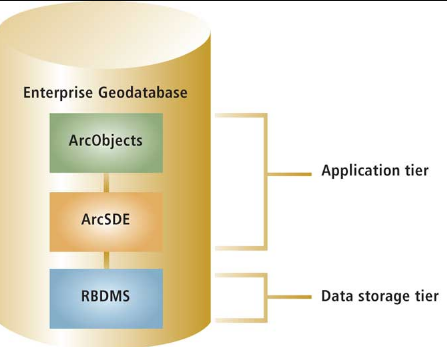
ArcSDE (Spatial Database Engine) is a software component that enables the use of spatial data in relational databases. PostgreSQL is a popular open-source relational database management system that can be configured to work with ArcSDE. Below is a step-by-step guide to setting up ArcSDE with PostgreSQL on a Linux environment.
Prerequisites
- PostgreSQL installed on a Linux machine (version 12 in this example)
- ArcGIS Desktop 10.8 installed on a Windows machine
- Access to the
st_geometry.sofile from ArcGIS Database Support
Steps
1. Copy st_geometry.so to PostgreSQL Library Directory
- Locate the
st_geometry.sofile from your ArcGIS installation. It is typically found inC:\Program Files (x86)\ArcGIS\Desktop10.8\DatabaseSupport\PostgreSQL\12\Linux64on a Windows machine. - Copy
st_geometry.soto your PostgreSQL library directory on the Linux machine. The paths may vary but are usually/var/lib/pgsql/12/data/and/usr/pgsql-12/lib.
cp /path/to/st_geometry.so /var/lib/pgsql/12/data/
cp /path/to/st_geometry.so /usr/pgsql-12/lib/
2. Set Permissions for st_geometry.so
- Change the ownership of
st_geometry.soto thepostgresuser.
chown postgres:postgres /var/lib/pgsql/12/data/st_geometry.so
chown postgres:postgres /usr/pgsql-12/lib/st_geometry.so- Set the appropriate permissions for
st_geometry.so.
chmod 755 /var/lib/pgsql/12/data/st_geometry.so
chmod 755 /usr/pgsql-12/lib/st_geometry.so
3. Install PostGIS Extension (Optional)
You can install the PostGIS extension for PostgreSQL using yum.
yum install postgis-postgresql124. Create Enterprise Geodatabase using ArcGIS
- Open ArcGIS Desktop 10.8 on your Windows machine.
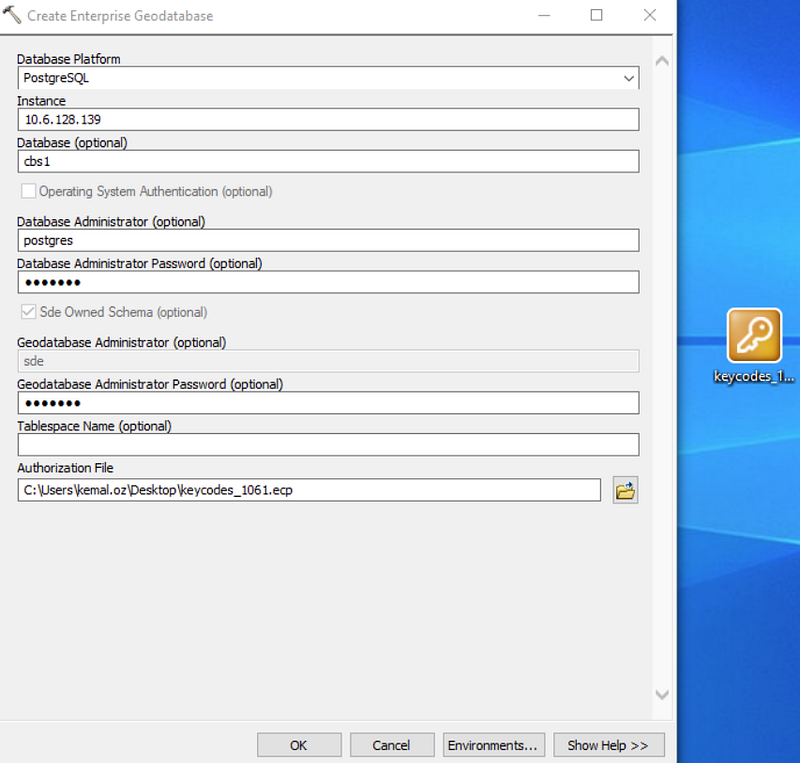
- Navigate to
Analysis→Data Management Tools→Geoprocessing→Geo Dba→Create Enterprise Geodatabase. - Follow the prompts to connect to your PostgreSQL database and create the geodatabase.
5. Connect with sde User
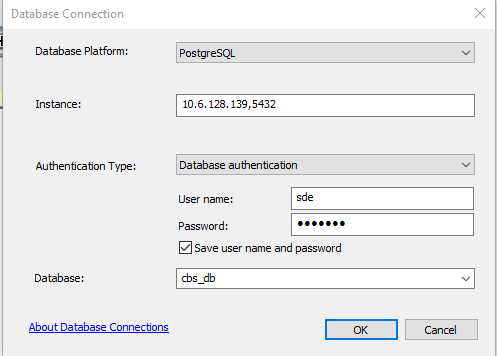
Now you should be able to connect to the newly created geodatabase using the sde user.
By following these steps, you should have successfully set up ArcSDE with PostgreSQL on a Linux environment. This configuration allows you to leverage the spatial capabilities of ArcGIS while benefiting from the robustness and scalability of PostgreSQL.