 ← PostgreSQL Blog
How to Install and Configure Prometheus & Grafana on RHEL9
How to Install and Configure Prometheus & Grafana on RHEL9
Grafana setup
First off all, i downloaded the Key for Grafana Repo. And, i add the Downloaded Key to the Repo.
wget -q -O gpg.key https://rpm.grafana.com/gpg.key

sudo rpm --import gpg.key
nano /etc/yum.repos.d/grafana.repo
i make the following settings to download the Grafana repo, save it to the file and exit.
[grafana]
name=grafana
baseurl=https://rpm.grafana.com
repo_gpgcheck=1
enabled=1
gpgcheck=1
gpgkey=https://rpm.grafana.com/gpg.key
sslverify=1
sslcacert=/etc/pki/tls/certs/ca-bundle.crt
exclude=*beta*
Dowloading grafana. Please do not forget enable and start
yum install grafana
systemctl enable grafana-server
systemctl start grafana-server
systemctl status grafana-server
You can visit your site from using the below link.
http://10.**.**.**:3000
# Default username and password admin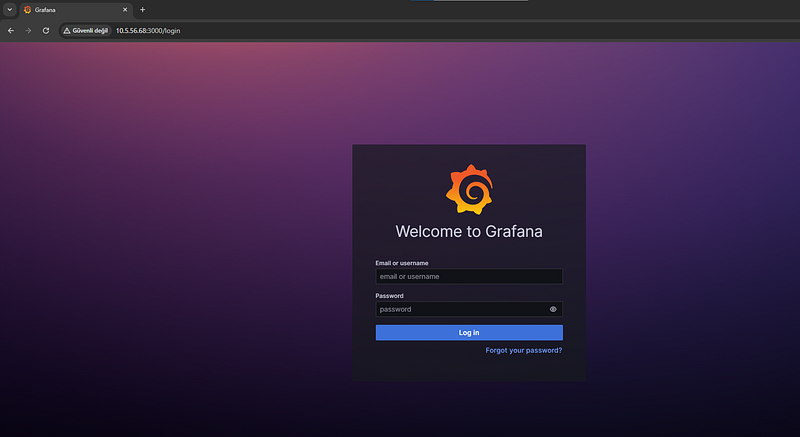
Promethus Setup
Creating a system group and user for Prometheus:
groupadd --system prometheus

# Preventing user login to the system.
useradd -s /sbin/nologin --system -g prometheus prometheus
Creating directories for Prometheus:
mkdir /var/lib/prometheus

# Creating necessary directories under etc

for i in rules rules.d files_sd; do
    sudo mkdir -p /etc/prometheus/${i};
done
Downloading Prometheus and setting it up:
# Switching to the opt directory.
cd /opt

# Downloading Prometheus as a compressed file.
wget https://github.com/prometheus/prometheus/releases/download/v2.37.9/prometheus-2.37.9.linux-amd64.tar.gz

# Extracting the compressed file.
tar -xzvf prometheus-2.37.9.linux-amd64.tar.gz

cd prometheus-2.37.9.linux-amd64

# Moving required files for the service.
cp prometheus promtool /usr/local/bin/

# Creating necessary files and directories under etc.
cp -r prometheus.yml consoles/ console_libraries/ /etc/prometheus/
Creating a systemd service file for Prometheus:
nano /etc/systemd/system/prometheus.serviceSave and exit after adding the following settings to the file:
[Unit]
Description=Prometheus
Documentation=https://prometheus.io/docs/introduction/overview/
Wants=network-online.target
After=network-online.target

[Service]
Type=simple
User=prometheus
Group=prometheus
ExecReload=/bin/kill -HUP $MAINPID
ExecStart=/usr/local/bin/prometheus \
  --config.file=/etc/prometheus/prometheus.yml \
  --storage.tsdb.path=/var/lib/prometheus \
  --web.console.templates=/etc/prometheus/consoles \
  --web.console.libraries=/etc/prometheus/console_libraries \
  --web.listen-address=**.**.**.**:9090 \
  --web.external-url=

SyslogIdentifier=prometheus
Restart=always

[Install]
WantedBy=multi-user.target
The service file content you provided looks good. It sets up Prometheus as a service, defines its configurations, and enables it to run on port 9090.
Adjusting permissions and ownership:
chown -R prometheus:prometheus /etc/prometheus
chmod -R 775 /etc/prometheus/
chown -R prometheus:prometheus /var/lib/prometheus/
Reloading systemd configurations and starting the Prometheus service:
systemctl daemon-reload
systemctl start prometheus
systemctl enable prometheus
Checking the status of the Prometheus service:
systemctl status prometheusAs for accessing Prometheus via the browser using the provided URL, http://10.**.**.**:9090/, it will open the Prometheus web interface. This interface allows you to monitor and manage Prometheus metrics, configure alerting rules, and explore the data collected by Prometheus. For more detailed and technical articles like this, keep following our blog on Medium. If you have any questions or need further assistance, feel free to reach out in the comments below and directly.