 ← PostgreSQL Blog
A Step-by-Step Guide to Installing and Configuring PostgREST with postman
A Step-by-Step Guide to Installing and Configuring PostgREST with postman
PostgREST is a powerful tool that allows you to create RESTful APIs from your PostgreSQL database. In this guide, we will walk through the steps to download, install, and configure PostgREST. Additionally, we’ll cover how to run PostgREST as a system service and postman.
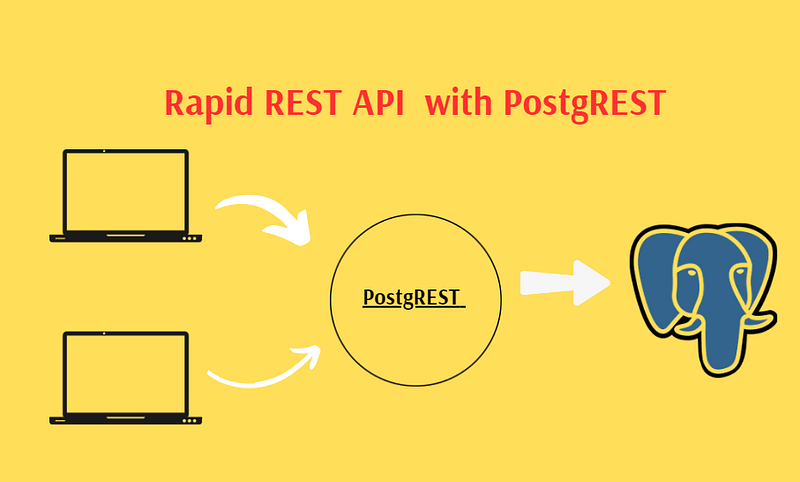
1. Downloading and Installing PostgREST
First, you need to download the PostgREST binary:
curl -LO https://github.com/PostgREST/postgrest/releases/download/v9.0.0/postgrest-v9.0.0-linux-static-x64.tar.xzNext, extract the downloaded file and move the binary to a suitable location:
tar -xf postgrest-v9.0.0-linux-static-x64.tar.xz
sudo mv postgrest /usr/local/bin/
sudo chmod +x /usr/local/bin/postgrest
2. Creating a Configuration File for PostgREST
Create a configuration directory and file for PostgREST. For example, create a file at /etc/postgrest/config:
sudo mkdir -p /etc/postgrest
sudo nano /etc/postgrest/config
Set the contents of the file as follows:
db-uri = "postgresql://postgres:password@10.5.**.**:5432/exampledb"
db-schema = "yol"
db-anon-role = "user1"

jwt-secret = "secret_with_at_least_32_characters"
jwt-secret-is-base64 = false
server-port = 3000
Replace the placeholders with your actual database connection details and desired configuration values.
3. Running PostgREST as a System Service
To ensure that PostgREST starts automatically and runs continuously, create a systemd service file:
sudo nano /etc/systemd/system/postgrest.serviceSet the contents of the service file as follows:
[Unit]
Description=PostgREST
After=network.target

[Service]
ExecStart=/usr/local/bin/postgrest /etc/postgrest/config
Restart=always
User=postgres
Group=postgres

[Install]
WantedBy=multi-user.target
4. Starting and Enabling the PostgREST Service
Reload the systemd manager configuration and start the PostgREST service:
sudo systemctl daemon-reload
sudo systemctl enable postgrest
sudo systemctl start postgrest
5. Verifying PostgREST
Check the status of the PostgREST service to ensure it is running correctly:
sudo systemctl status postgrestAdditionally, you can verify that PostgREST is responding by making an HTTP request to its default port (3000):
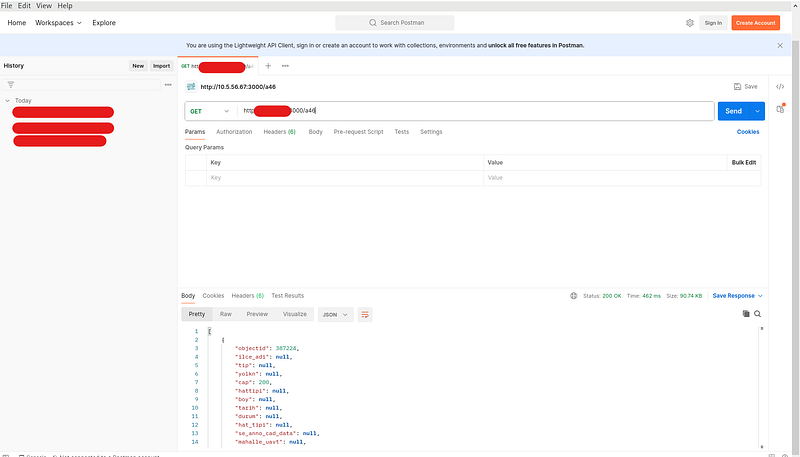
curl http://10.**.**.**:3000
curl -X GET http://10.**.**.**:3000/yol
# you can use crud operation
curl -d '{"numara":"1234","ad":"ali","soyad":"den"}' -H "Content-Type: application/json" -X POST http://10.**.**.**:3000/yol
If everything is set up correctly, you should see a response indicating that PostgREST is running and accessible.

Installing Postman for API Testing
Postman is a popular tool for API development and testing. In this section, we’ll guide you through the steps to install Postman on a system using the snap package manager.
1. Installing Snapd
First, install snapd if it is not already installed on your system. On a system that uses dnf such as RHEL, you can install snapd with the following command:
sudo dnf install snapdStart the snapd service:
sudo systemctl start snapdEnable the snapd service to start on boot:
sudo systemctl enable snapd2. Installing Postman via Snap
With snapd installed and running, you can install Postman using the following command:
sudo snap install postman3. Running Postman
Once Postman is installed, you can launch it using the snap command:
snap run postmanAlternatively, you can find Postman in your application menu or launcher, depending on your desktop environment.
Conclusion
By following these steps, you have successfully installed and configured PostgREST. This setup allows you to create RESTful APIs directly from your PostgreSQL database, providing a robust solution for data access and manipulation. For further customization and advanced configurations, refer to the official PostgREST documentation. For more detailed and technical articles like this, keep following our blog on Medium. If you have any questions or need further assistance, feel free to reach out in the comments below and directly.