 ← PostgreSQL Blog
Passwordless SSH Login
Passwordless SSH Login
Passwordless SSH login is a suitiable way to access remote servers without the need to repeatedly enter your password. This can significantly streamline administrative tasks and improve security. In this guide, we’ll walk you through the steps to set up passwordless SSH access between servers.
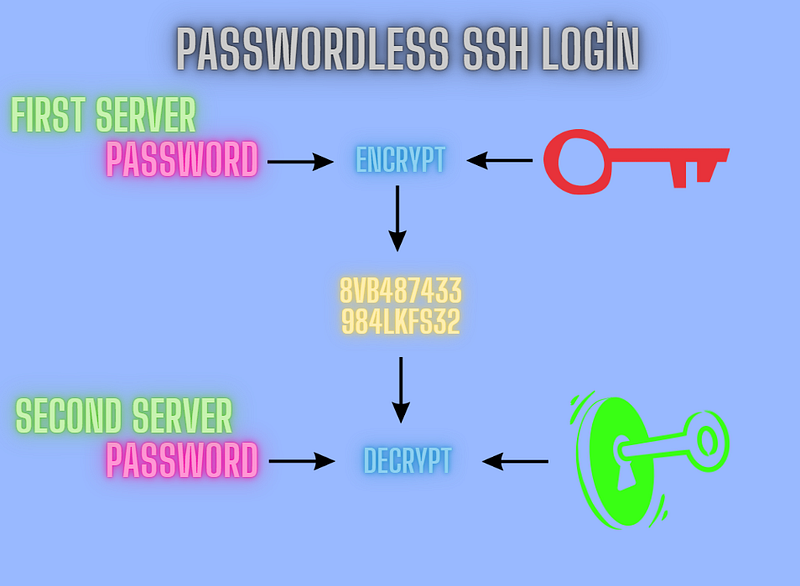
Step 1: Switch User
First, ensure that you’re logged in as the user who will be setting up SSH access. Use the su command to switch to the target user if necessary:
su - userReplace user with your actual username.
Step 2: Generate SSH Key Pair
Default Options
If you prefer a quicker setup, you can use default settings. Just press Enter three times to accept default file locations and skip setting a passphrase:
ssh-keygen -t rsa
# 3 times enter If you do not want use passphrase or dont want default path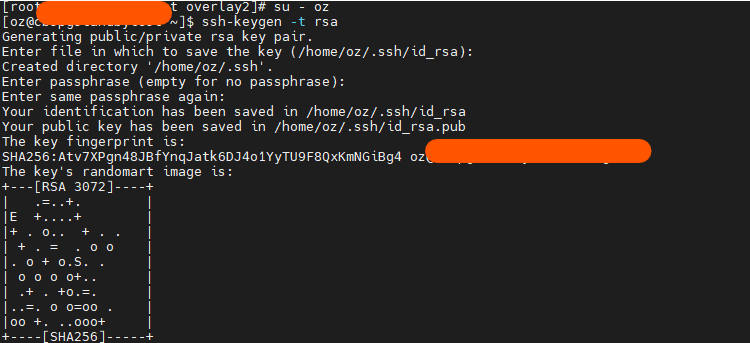
Note: If you use this option please skip step 3.
Basic Key Generation
To generate a new SSH key pair, use the ssh-keygen command. This command will create a public-private key pair for you. You can run it with minimal options for a basic setup:
ssh-keygen # Do not forget 3 times enter if you do not want change default key file and do not enter passpharaseAdvanced Key Generation
For a more secure and customized setup, you can specify additional parameters:
ssh-keygen -t ed25519 -a 100 -C "user@hostname" -N 'StrongPassphrase123!'

# You can change your keygen generation combination with;
ssh-keygen --help
Explanation of Options:
-t ed25519: Specifies the key type.ed25519is a modern and highly secure key type.-a 100: Sets the number of rounds for key derivation. More rounds make your key harder to crack but require more processing power.-C "user@hostname": Adds a comment to the key, which helps identify it.-N 'StrongPassphrase123!': Sets a passphrase for the key. This passphrase is different from the SSH login password and adds an extra layer of security.
Important reminder: In this case, the passphrase you enter is the -N option, if you use Advanced Key Generation. Also, If you do not want advance option, please use Default Options and pass over this step.
Step 3: Copy the Public Key to the Remote Server
Once you’ve generated your SSH key pair, you need to copy the public key to the remote server. This step allows the remote server to recognize your key and grant access without a password.
Use the ssh-copy-id command to do this:
ssh-copy-id postgres@Backup_Server_IPReplace postgres with the remote server's username and Backup_Server_IP with the server’s IP address. This command appends your public key to the ~/.ssh/authorized_keys file on the remote server.
Step 4: Test Passwordless Login
Finally, test the passwordless login to ensure that everything is set up correctly:
ssh postgres@Backup_Server_IPIf everything is configured correctly, you should be able to log in without being prompted for a password.
Troubleshooting
Permissions Issues: Ensure that the ~/.ssh directory and ~/.ssh/authorized_keys file on the remote server have the correct permissions. The .ssh directory should be 700, and the authorized_keys file should be 600.
SELinux: On some systems with SELinux enabled, you might need to adjust security contexts.
Conclusion
Setting up passwordless SSH login enhances both security and convenience. By following these steps, you can streamline your access to remote servers and reduce the hassle of password entry. Remember to protect your private key and use a strong passphrase if possible to maintain security. Feel free to adjust the key generation options based on your specific needs and security requirements For more detailed and technical articles like this, keep following our blog on Medium. If you have any questions or need further assistance, feel free to reach out in the comments below and directly.