 ← PostgreSQL Blog
Setting Up InfluxDB and Telegraf on RHEL 9 for System Monitoring with Authentication
Setting Up InfluxDB and Telegraf on RHEL 9 for System Monitoring with Authentication
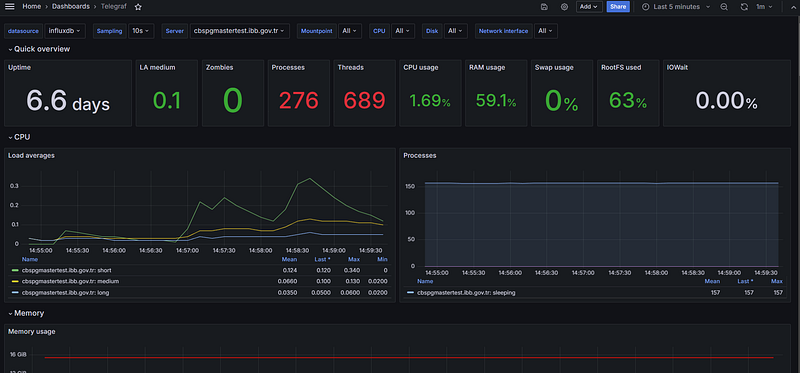
Introduction: In this article, I will guide you through setting up InfluxDB and Telegraf on RHEL 9, providing a step-by-step configuration for monitoring your system’s performance. We’ll also create a dedicated InfluxDB user with a password to securely send metrics from Telegraf to InfluxDB. Although Grafana will be used for visualizing the data, I’ll link to an excellent article that covers its installation and setup.
Prerequisites
Before we begin, make sure you have:
- A RHEL 9 system.
- Basic familiarity with Linux commands.
Step 1: Install InfluxDB on RHEL 9
Install InfluxDB:
sudo yum install influxdbStart and enable the InfluxDB service:
sudo systemctl start influxdb
sudo systemctl enable influxdb
Verify InfluxDB is running:
sudo systemctl status influxdbStep 2: Create a User and Database in InfluxDB
To securely connect Telegraf to InfluxDB, we need to create a database and a user.
Access the InfluxDB CLI:
influx -host 10.**.**.** -port 8086 -username admin -password 'test123'Create a database named telegraf:
CREATE DATABASE telegraf;Create a user with a password and give it write access to the telegraf database:
CREATE USER telegraf_user WITH PASSWORD 'test123';
GRANT ALL ON telegraf TO telegraf_user;
Exit the InfluxDB CLI:
exitNow, you have a dedicated telegraf_user with a secure password for the telegraf database.
Step 3: Install and Configure Telegraf
Telegraf is a plugin-driven server agent for collecting system metrics.
- Install Telegraf:
sudo dnf install telegraf - Configure Telegraf to send data to InfluxDB with the newly created credentials:
- Edit the Telegraf configuration file located at
/etc/telegraf/telegraf.conf:
sudo nano /etc/telegraf/telegraf.conf- Look for the
[[outputs.influxdb]]section and update the URL, database, and credentials settings:
[[outputs.influxdb]]
urls = ["http://localhost:8086"]
database = "telegraf"
username = "telegraf_user"
password = "test123"- Start and enable the Telegraf service:
sudo systemctl start telegraf
sudo systemctl enable telegraf- Verify Telegraf is collecting and sending metrics to InfluxDB:
sudo systemctl status telegrafStep 4: Setting Up Grafana for Visualization
To visualize the data in a user-friendly dashboard, you’ll need Grafana. Instead of walking through its setup, I recommend following this detailed guide: Grafana Installation Guide. Now, you’ve set up InfluxDB and Telegraf on your RHEL 9 system, created a secure user, and ensured your system metrics are being collected and stored securely. You can use Grafana for visualizing this data by following the linked guide. This powerful monitoring stack will help you keep track of your system’s performance effortlessly while maintaining security.