 ← PostgreSQL Blog
Bash Profile & Aliases for Postgres
Bash Profile & Aliases for Postgres
Managing PostgreSQL on Linux? You’re probably juggling between dozens of commands, logs, and scripts. With a few tweaks to your .bash_profile and .pgsql_profile, you can drastically simplify your workflow.
This article will show you how to:
- Define powerful
aliascommands forpostgresandrootusers - Use environment variables like
PGDATAandPGPORT - Use
psql -cinside alias to query live database metrics - Reload your profile instantly with
source(no reboot required!)
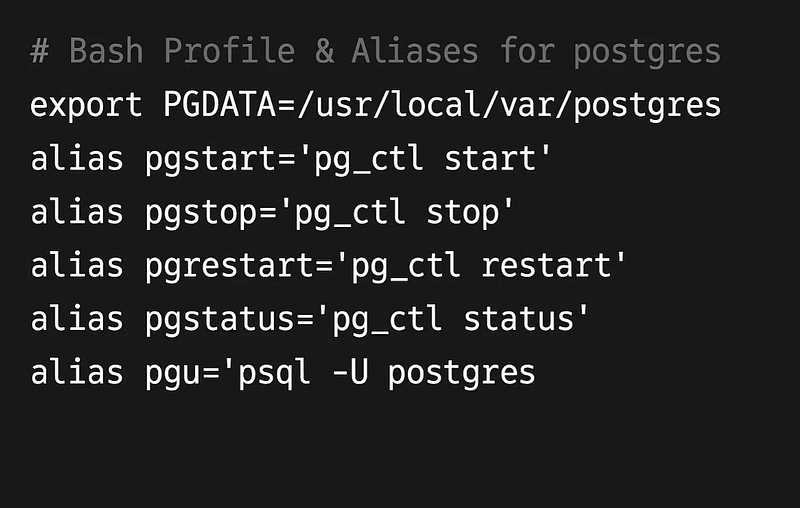
PostgreSQL User (postgres) — Sample .pgsql_profile
# ~/.pgsql_profile

# Environment Variables
PATH=/usr/pgsql-13/bin:$PATH:$HOME/bin
PGDATA=/pg_data/data
PGPORT=5432
PGUSER=postgres
export PATH PGDATA PGPORT PGUSER

# Prompt Customization
PS1='`whoami` $PWD> '

# Directory shortcuts
alias alert='cd /pg_log/log'
alias alertlog='tail -100f $(ls -t /pg_log/log | head -n1)'
alias oh="cd $PGDATA"
alias ltr="ls -ltr"

# Process checker
alias dbs="ps -fu postgres | grep postgres"

# Patroni cluster status
alias patroni-status='patronictl -c /etc/patroni/patroni.yml list'

# PSQL Aliases - Query Your Database Like a Boss
alias dbsizes="psql -U postgres -d postgres -c \"SELECT datname AS db, pg_size_pretty(pg_database_size(datname)) AS size FROM pg_database ORDER BY pg_database_size(datname) DESC;\""
alias connlist="psql -U postgres -d postgres -c \"SELECT datname, count(*) AS connections FROM pg_stat_activity GROUP BY datname;\""
alias slowqueries="psql -U postgres -d postgres -c \\\"SELECT query, total_exec_time, calls FROM pg_stat_statements ORDER BY total_exec_time DESC LIMIT 5;\\\""
alias listdbs="psql -U postgres -l"
alias uptime="psql -U postgres -d postgres -c \\\"SELECT now() - pg_postmaster_start_time() AS uptime;\\\""
Reload without reboot:
source ~/.pgsql_profilepostgres User’s .bash_profile
# ~/.bash_profile

[ -f /etc/profile ] && source /etc/profile
PGDATA=/var/lib/pgsql/13/data
export PGDATA

# Load user-specific settings
[ -f ~/.pgsql_profile ] && source ~/.pgsql_profile
umask 077
Root User — .bashrc Essentials
# ~/.bashrc

# Package management
alias update="dnf update -y"
alias clean="dnf clean all"

# Logs
alias dmesglog="dmesg | less"
alias syslog="journalctl -xe"

# File management
alias ll='ls -lah'
alias ltr='ls -ltrh'
alias ..='cd ..'
alias ...='cd ../..'

# PostgreSQL service management
alias pgstart="systemctl start postgresql-13.service"
alias pgstop="systemctl stop postgresql-13.service"
alias pgstatus="systemctl status postgresql-13.service"


# Service management (eg, Patroni)
alias patronistart="systemctl start patroni.service"
alias patronistop="systemctl stop patroni.service"
alias patronistatus="systemctl status patroni.service"


# Disk and memory monitoring
alias disk='df -h'
alias mem='free -m'
alias top5='ps aux --sort=-%mem | head -n 6'

# Safety
alias rm='rm -i'
Reload:
source ~/.bashrcWhat’s the Difference Between .bash_profile and .bashrc?
File NameWhen It’s Loaded.bash_profileOn login shell (su - postgres).bashrcOn interactive shell (bash, new terminal).profileGeneric profile (used by many systems)
Bonus: View Current Settings
- Show active aliases:
alias- Check PostgreSQL environment variables:
env | grep PGSummary
Here’s what you get with a properly crafted bash profile:
- Shortcuts to your most used commands
- Predefined
psqlqueries with readable output - Faster recovery, debugging, and log inspection
- A more pleasant CLI experience
A few aliases, exports, and one source command can make a world of difference.