 ← PostgreSQL Blog
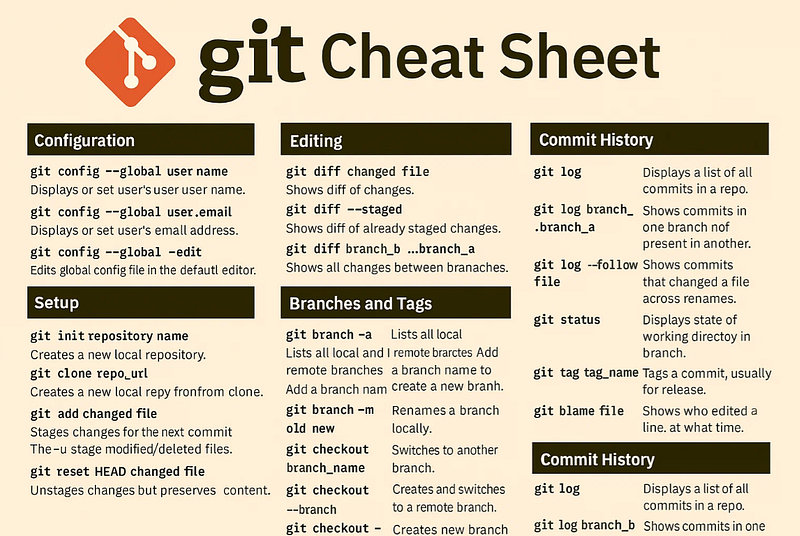
Git Cheat Sheet
Git Cheat Sheet
In today’s software world, version control systems are a must-have for teams that want to collaborate, track changes, and keep their projects organized. Among them, Git has become the industry standard. Git allows developers to work independently while keeping everything in sync. In this article, I’ll walk you through Git’s core concepts, workflows, and the most useful commands you’ll use daily.
The Core Concepts of Git
Every change in Git goes through four stages:
- Working Directory — Where you edit files locally.
- Staging Area — A temporary “waiting room” before committing. (
git add) - Local Repository — The hidden
.gitfolder where history lives. (git commit) - Remote Repository — The central source of truth (GitHub, GitLab, Bitbucket, etc.). (
git push)
This flow ensures that changes are always traceable and collaboration stays smooth.
Configuration
Before starting, configure Git with your identity:
git config --global user.name "Your Name"
git config --global user.email "you@example.com"
git config --global -e      # Edit global config in default editor
This ensures commits are associated with you.
Working with Repositories
- Initialize a new repo:
git init- Clone an existing repo:
git clone <remote_repo_url>- Update your repo with the latest changes:
git pull- Fetch changes without merging:
git fetchComparing Changes
- Show differences in a file:
git diff <file>- Show staged changes:
git diff --staged- Compare two branches:
git diff branch_b...branch_aBranching Made Simple
Branches allow you to work on new features without touching the main codebase.
- List all branches (local & remote):
git branch -a- Create a new branch:
git branch dev- Switch branches:
git checkout dev- Merge a branch into the current one:
git merge dev- Reapply commits from one branch onto another:
git rebase <branch_name>Commit History
Tracking history is crucial for understanding how code evolved.
- Show all commits:
git log- Commits in one branch not in another:
git log branch_b..branch_a- Show commits that modified a file (even across renames):
git log --follow <file>- See who edited each line of a file:
git blame <file>Managing Content
- Check status:
git status- Stage changes:
git add <file>- Commit with a message:
git commit -m "descriptive message"- Push to remote:
git pushUndoing & Cleaning Up
- Unstage a file:
git restore --staged <file>- Remove untracked files:
git clean -f- Revert a commit:
git revert <commit_id>Handling Merge Conflicts
When merging causes conflicts, use a merge tool:
git mergetool --tool=vimdiffThis lets you decide which changes to keep and resolve conflicts interactively.
Tracking & Tagging
- View commit history (short):
git log --oneline- See who changed each line of a file:
git blame <file>- Tag a release:
git tag v1.0 -m "first release"Final Thoughts
Git is more than just a version control tool — it’s the backbone of collaboration and code quality.
- Everyday workflow boils down to:
git add → git commit → git push - Branches let you work in parallel without breaking production.
- Rollback and merge tools help you stay in control when things go wrong.
The more you practice, the more Git becomes second nature.