 ← PostgreSQL Blog
SSH Cheat Sheet
SSH Cheat Sheet
A practical, copy-paste friendly SSH guide for Linux engineers, sysadmins, DBAs, and SREs.
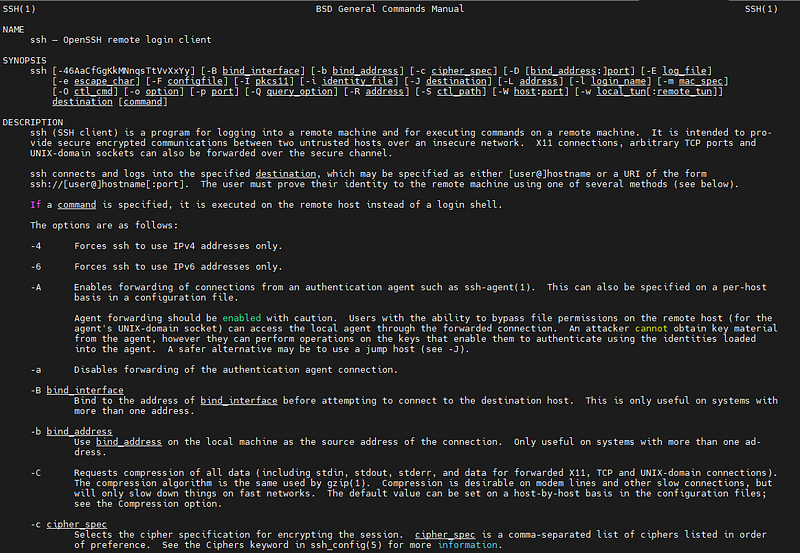
Table of Contents
Part 1 — SSH Basics (For Everyone)
- Basic SSH Usage
- SSH With Custom Port & User
- SSH Key Authentication
- SSH Config File Tricks
- SSH Tunneling & Port Forwarding (Concepts)
- Copy Files With SCP & RSYNC
- Debugging SSH Connections
- Security Best Practices
Part 2 — SSH Options Explained (Beginner → Advanced)
- Understanding SSH Command Syntax
- Connection & Authentication Options (
-p,-l,-i,-F) - Debugging & Verbose Options (
-v,-vvv) - Port Forwarding Options (
-L,-R,-D,-W) - Jump Hosts & Bastion Servers (
-J,ProxyJump) - Session & Terminal Control (
-N,-T,-t,-f) - Security & Authentication Options (
-A,-a,-o) - Networking & Advanced Routing Options (
-B,-b,-w) - Encryption & Algorithm Options (
-c,-m,-Q) - ControlMaster & Connection Reuse (
-S,-O)
Part 1 — SSH Basics (For Everyone)
Basic SSH Usage
ssh user@server_ipConnect to a remote server using default port 22.
ssh hostnameUses values from ~/.ssh/config if defined.
SSH With Custom Port & User
ssh -p 2222 user@server_ipSpecify a non-standard SSH port.
ssh user@hostnameLogin with a specific user.
SSH Key Authentication
Generate SSH Key
ssh-keygen -t ed25519Copy Public Key to Server
ssh-copy-id user@server_ipAfter this, password login is no longer required.
SSH Config File Tricks (Highly Recommended)
Edit config:
nano ~/.ssh/configExample:
Host prod-db
  HostName 10.10.10.20
  User postgres
  Port 22
  IdentityFile ~/.ssh/id_ed25519
Connect with:
ssh prod-db

# Cleaner
# Faster
# Less mistakes
SSH Tunneling & Port Forwarding
Local Port Forwarding
ssh -L 5432:localhost:5432 user@server_ipAccess a remote PostgreSQL as if it’s local.
Remote Port Forwarding
ssh -R 9000:localhost:3000 user@server_ipExpose local service to remote machine.
Dynamic Port Forwarding (SOCKS Proxy)
ssh -D 8080 user@server_ipUseful for secure browsing & proxy setups.
Copy Files With SCP & RSYNC
Copy File to Remote
scp file.txt user@server_ip:/path/Copy Directory
scp -r mydir user@server_ip:/path/Faster & Better Sync (Recommended)
rsync -avz file.txt user@server_ip:/path/Debugging SSH Connections
ssh -v user@server_ipEven more details:
ssh -vvv user@server_ipCheck which key is used:
ssh -i ~/.ssh/mykey user@server_ipSecurity Best Practices
Disable password authentication
Use SSH keys
Change default port
Use Fail2Ban
Restrict users via AllowUsers
Example (sshd_config):
PasswordAuthentication no
PermitRootLogin no
Restart SSH:
sudo systemctl restart sshdPart 2 — SSH Options Explained (Beginner → Advanced)
This section explains SSH command-line options in simple terms.
You don’t need prior SSH knowledge to understand this part.
Basic Syntax Reminder
ssh [options] user@host- user → remote Linux username
- host → server IP or hostname
- options → SSH behavior modifiers (what we explain below)
Core & Most Used Options (Must Know)
-p → Port
ssh -p 2222 user@serverConnect to a custom SSH port
Default SSH port = 22
Often changed for security reasons
Think of port as a door number on the server.
-l → Login Name
ssh -l postgres server_ipSpecifies which user to log in as
Same as:
ssh postgres@server_ip-i → Identity File (SSH Key)
ssh -i ~/.ssh/id_ed25519 user@serverTells SSH which private key to use
Useful when you have multiple SSH keys
-v, -vv, -vvv → Verbose / Debug Mode
ssh -v user@serverShows connection steps
Helps debug:
- authentication issues
- wrong keys
- network problems
More v = more details.
-F → Custom Config File
ssh -F myconfig user@serverUse a non-default SSH config file
Default config file:
~/.ssh/configAuthentication & Security Options
-o → Custom SSH Option
ssh -o StrictHostKeyChecking=no user@serverPass any advanced SSH setting manually
Equivalent to settings inside ssh_config
Common examples:
-o PasswordAuthentication=no
-o ConnectTimeout=5
-A → SSH Agent Forwarding
ssh -A user@serverForward your local SSH keys to the remote server
Used for jump servers / bastion hosts
Use carefully (security risk on untrusted servers).
-a → Disable Agent Forwarding
ssh -a user@serverSafer default
Explicitly disables key forwarding
-K → GSSAPI Authentication
ssh -K user@serverUsed in Kerberos / enterprise environments
Port Forwarding & Tunneling
-L → Local Port Forwarding
ssh -L 5432:localhost:5432 user@serverAccess remote service locally
Very common for:
- PostgreSQL
- MySQL
- Web apps
-R → Remote Port Forwarding
ssh -R 8080:localhost:3000 user@serverExpose local service on remote server
-D → Dynamic Port Forwarding (SOCKS Proxy)
ssh -D 1080 user@serverCreates a SOCKS proxy
Used for:
- secure browsing
- tunneling traffic
-W → Forward Standard Input/Output
ssh -W host:port user@serverMostly used for ProxyJump logic
Jump Hosts & Multiple Servers
-J → Jump Host (Bastion Server)
ssh -J user@jumpserver user@targetConnect through another server
Modern replacement for complex tunnels
Session Control
-N → No Command Execution
ssh -N -L 5432:localhost:5432 user@serverOpen tunnel only
No shell access
-T → Disable Pseudo-TTY
ssh -T user@serverUsed in scripts
No interactive terminal
-t → Force TTY
ssh -t user@server "sudo systemctl restart postgresql"Required for sudo commands
Background & Control
-f → Background Mode
ssh -f -N -L 5432:localhost:5432 user@serverRun SSH in background
Perfect for tunnels
-S → Control Socket
ssh -S /tmp/ssh.sock user@serverUsed with connection sharing
-O → Control Commands
ssh -O exit user@serverControl an existing SSH connection
Encryption & Algorithms
-c → Cipher
ssh -c aes256-gcm@openssh.com user@serverChoose encryption algorithm
-m → MAC Algorithm
ssh -m hmac-sha2-256 user@serverMessage authentication algorithm
-Q → Query Algorithms
ssh -Q cipher
ssh -Q mac
List supported algorithms
Network-Level Options
-B → Bind Interface
ssh -B eth0 user@serverForce SSH traffic through specific interface
-b → Source Address
ssh -b 192.168.1.10 user@serverUse a specific local IP
Golden Rule (Beginner Tip)
If an SSH command looks long or scary,
move it into~/.ssh/configand simplify your life.
SSH is more than just a way to log into a server — it’s a powerful tool for secure access, automation, and troubleshooting. If you understand the basics, you can safely manage any Linux system. If you master the options, you can handle complex setups like tunnels, bastion hosts, and production environments with confidence. Save this cheat sheet, you’ll come back to it more often than you think.