 ← PostgreSQL Blog
Systemd & Journalctl Cheat Sheet
Systemd & Journalctl Cheat Sheet
A practical, copy-paste friendly guide to mastering Linux services and logs for DevOps, SysAdmins, and Developers.

Table of Contents
Part 1 — Service Management (Day-to-Day Operations)
- Managing Service State (
start,stop,restart,reload) - Boot & System State (
enable,disable) - Checking Status & Troubleshooting (
status,is-active) - Listing Services
Part 2 — Mastering Logs with Journalctl
- Real-time Monitoring (
-f) - Filtering by Time & Service (
-u,--since) - Kernel & Boot Logs (
-k,-b) - Log Maintenance (
--vacuum)
Part 3 — Advanced Systemd Skills (Power User)
- Analyzing Boot Performance (
blame,critical-chain) - Creating a Custom Service (Template)
- Systemd Timers vs Cron
Part 1 — Service Management (Day-to-Day Operations)
Most Linux distributions (Ubuntu, Debian, CentOS, RHEL) now run on Systemd. Here are the essential commands you use 90% of the time.
1. Basic Service Control
Replace postgresql with your service name (e.g., nginx, docker, ssh).
# Start a service immediately
sudo systemctl start postgresql

# Stop a service immediately
sudo systemctl stop postgresql

# Restart a service (Stop + Start)
sudo systemctl restart postgresql

# Reload configuration without dropping connections (If supported by the service)
sudo systemctl reload postgresql
2. Boot & System State
Managing what starts automatically when the server turns on.
# Enable a service to start on boot
sudo systemctl enable postgresql

# Disable a service from starting on boot
sudo systemctl disable postgresql

# Check if a service is enabled
systemctl is-enabled postgresql
3. Checking Status (The First Step of Debugging)
The status command gives you the process ID, memory usage, and the last few log lines.
# Check detailed status
systemctl status postgresql

# Check only if it is active (returns "active" or "inactive")
systemctl is-active postgresql

# Check if the service failed
systemctl is-failed postgresql
4. Listing Services
Find out what is running on your system.
# List all running services
systemctl list-units --type=service --state=running

# List all services (including inactive ones)
systemctl list-units --type=service --all

# Search for a specific service (e.g., firewall related)
systemctl list-units --type=service | grep fire
Part 2 — Mastering Logs with Journalctl
Stop using tail -f /var/log/syslog. journalctl is the modern, structured way to handle logs.
1. Viewing & Following Logs
# Follow logs in real-time (Like tail -f)
journalctl -f

# Follow logs for a SPECIFIC service only (Golden Command)
journalctl -u postgresql -f

# View logs in reverse order (newest first)
journalctl -r
2. Filtering by Time
Great for post-mortem analysis.
# Show logs since the last reboot
journalctl -b

# Show logs from the last hour
journalctl --since "1 hour ago"

# Show logs between specific times
journalctl --since "2025-12-20 14:00:00" --until "2025-12-20 15:00:00"
3. Kernel & Error Logs
# Show only Kernel messages (dmesg equivalent)
journalctl -k

# Show only Error, Critical, and Alert priority messages
journalctl -p err
4. Log Maintenance
If your disk is filling up, clean your logs safely.
# Check how much disk space logs are taking
journalctl --disk-usage

# Keep only the last 1GB of logs
journalctl --vacuum-size=1G

# Keep only the last 2 days of logs
journalctl --vacuum-time=2d
Part 3 — Advanced Systemd Skills (Power User)
Take your skills from “Operator” to “Engineer”.
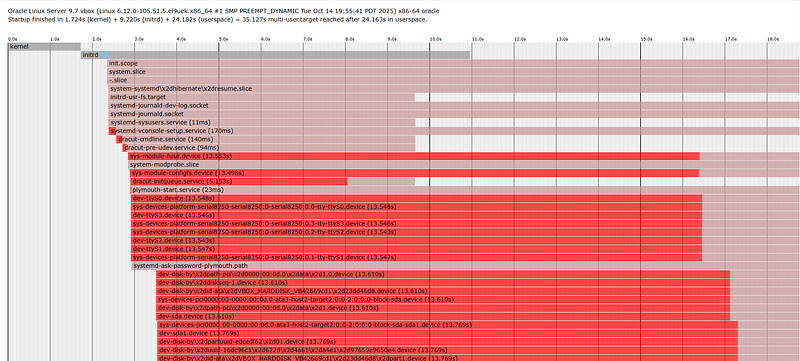
1. Analyzing Boot Performance
Is your server booting slowly? Find the culprit.
# List all services ordered by initialization time (Top offenders first)
systemd-analyze blame

# Visualizing the critical chain (Tree view of time-critical chain)
systemd-analyze critical-chain
2. Creating a Custom Service
Want to run a Python script or a Go binary as a service? Create a file at /etc/systemd/system/myapp.service:
[Unit]
Description=My Custom Application
After=network.target

[Service]
# User running the script
User=ubuntu
# Working Directory
WorkingDirectory=/home/ubuntu/app
# Command to start
ExecStart=/usr/bin/python3 /home/ubuntu/app/main.py
# Auto-restart if it crashes
Restart=always
RestartSec=5

[Install]
WantedBy=multi-user.target
After creating the file, run sudo systemctl daemon-reload and then sudo systemctl start myapp.
3. Systemd Timers (The Modern Cron)
Systemd timers are often preferred over cron because they can depend on other services and offer better logging.
# List all active timers
systemctl list-timers
Golden Rule (Beginner Tip)
Stop squinting at truncated logs.
If systemctl status shows a red "Failed" message but cuts off the important error lines (because they are too long), don't guess.Immediately run:journalctl -u [service_name] -e .The-ufilters only that specific service, and-ejumps to the end (most recent entries) immediately. It’s the fastest way to find the "Why" without scrolling through thousands of lines.
Conclusion
If you understand the Basics, you can keep applications running reliably. If you master the Logs and Analysis, you turn from a person who restarts servers hoping it fixes the issue into an engineer who diagnoses and solves the root cause.
Bookmark this guide; the next time a critical service crashes at 3 AM, these commands will be your best friends. Please share your best tricks.