 ← PostgreSQL Blog
Kubernetes Cheat Sheet
Kubernetes Cheat Sheet
A practical, copy-paste friendly kubectl guide for DevOps engineers, sysadmins, SREs, and backend developers.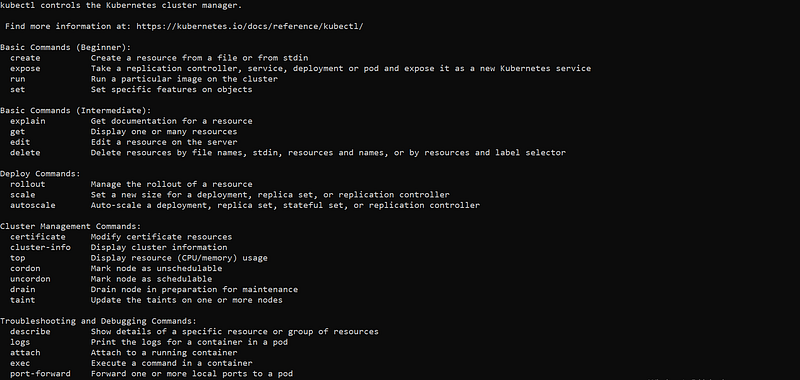
Table of Contents
Part 1 — Kubernetes Basics (For Everyone)
- Basic Cluster & Pod Info
- Context & Namespace Tricks
- Port Forwarding & Access
- Copy Files & Execute Commands
- Debugging & Logs
- Security Best Practices
Part 2 — Kubectl Options Explained (Beginner → Advanced)
- Understanding Kubectl Command Syntax
- Namespace & Scope Options (
-n,-A) - Output & Formatting Options (
-o,--sort-by) - Resource Management Options (
-f,--dry-run) - Execution & Session Control (
-i,-t,--rm) - Filtering & Selection Options (
-l,--field-selector) - Debugging & Verbose Options (
-v) - Monitoring Options (
-w)
Part 1 — Kubernetes Basics (For Everyone)
Basic Cluster & Pod Info
Check the status of your cluster servers.
kubectl get nodesList all running applications (pods) in the current namespace.
kubectl get podsContext & Namespace Tricks (Highly Recommended)
Constantly typing -n my-namespace gets tiring. Change your default namespace permanently for the current context:
kubectl config set-context --current --namespace=productionCleaner -Faster -Less mistakes
Port Forwarding & Access
Local Port Forwarding
kubectl port-forward svc/postgres-db 5432:5432 Access a remote cluster database as if it’s on your localhost.
Expose a Deployment
kubectl expose deployment my-app --port=80 --target-port=8080 Quickly create a service to route traffic to your pods.
Copy Files & Execute Commands
Open a Shell in a Pod
kubectl exec -it my-pod -- /bin/sh (or /bin/bash depending on the image).
Copy File to Pod
kubectl cp config.json my-pod:/app/config.jsonCopy File from Pod to Local
kubectl cp my-pod:/var/log/app.log ./local-app.logDebugging & Logs
Check Pod Logs
kubectl logs my-podTail Logs in Real-Time
kubectl logs -f my-podFind Out Why a Pod is Crashing kubectl describe pod my-pod (Look at the "Events" section at the very bottom).
Security Best Practices
- Use RBAC (Role-Based Access Control), avoid giving
cluster-adminto everyone. - Never store plain text passwords in Git; use
kubectl create secret. - Define resource limits (
requestsandlimits) to prevent a single pod from crashing the node. - Use Namespaces to isolate environments (dev, staging, prod).
Part 2 — Kubectl Options Explained (Beginner → Advanced)
This section explains kubectl command-line options in simple terms. You don’t need to memorize them, just understand how they modify your commands.
Basic Syntax Reminder
kubectl [command] [TYPE] [NAME] [options]- command → what you want to do (get, describe, apply, delete)
- TYPE → the resource type (pod, svc, deploy, ingress)
- NAME → the specific name of the resource
- options → behavior modifiers (what we explain below)
Namespace & Scope Options (Must Know)
-n → Namespace
kubectl get pods -n kube-system Run the command in a specific namespace. Default namespace is default unless changed. Think of a namespace as an isolated virtual cluster.
-A or --all-namespaces → Cluster-Wide
kubectl get pods -A Find that one pod when you forgot which namespace it was deployed in.
Output & Formatting Options
-o → Output Format
kubectl get pods -o wide Shows extra details like Pod IP and Node it’s running on.
kubectl get deployment my-app -o yaml Exports the exact YAML configuration of a running resource. Perfect for reverse-engineering.
kubectl get secret my-secret -o json Outputs as JSON. Useful for piping into jq.
Resource Management Options
-f → Filename
kubectl apply -f deployment.yaml Tell Kubernetes to create or update resources based on a file. You can also pass a directory:
kubectl apply -f ./my-manifests/--dry-run=client → Test Before Applying
kubectl create deployment nginx --image=nginx --dry-run=client -o yaml Generates the YAML for a command without actually creating it. Best trick for writing YAMLs from scratch!
Execution & Session Control
-i and -t (-it) → Interactive Terminal
kubectl exec -it my-pod -- bash Required to keep the session open and attach your keyboard to the container.
--rm → Ephemeral / Auto-Remove
kubectl run my-shell --rm -it --image=alpine -- sh Creates a temporary pod for debugging. Once you type exit, the pod is automatically deleted. Leaves no garbage behind.
Filtering & Selection Options
-l → Label Selector
kubectl get pods -l app=frontend Filter resources by their tags (labels). Same as WHERE app='frontend' in SQL.
--field-selector → Internal Filtering
kubectl get pods --field-selector status.phase=Failed Find all pods that are in a specific state (e.g., crashed or failed).
Debugging & Monitoring
-w or --watch → Watch Changes
kubectl get pods -w Keeps the command running and updates your screen instantly when a pod's status changes (e.g., from ContainerCreating to Running).
-v → Verbosity (Debug Kubectl itself)
kubectl get pods -v=8 Shows the exact HTTP API requests kubectl is making to the cluster. Useful when kubectl hangs and you blame the network.
Golden Rule (Beginner Tip)
If akubectl runorkubectl createcommand gets long or scary with too many flags, use--dry-run=client -o yaml > file.yamlto save it as a manifest. Managing infrastructure through YAML files (Infrastructure as Code) will simplify your life and save you when things break.
Kubernetes is more than just a container orchestrator — it’s an operating system for the cloud. If you understand the basics, you can keep any microservice running. If you master the options, you can debug outages in seconds and manage massive clusters with confidence. Save this cheat sheet, you’ll come back to it more often than you think.